Before you start
- Your store is online and your products are created.
Taxes (such as VAT) apply automatically to your customers' cart based on their country. Two conditions for a tax to apply: taxes must be enabled for your store, and the product must be marked taxable.
What you'll learn
- Enable your store's taxes.
- Create a tax rule (name + rate) per country.
- Mark your products as taxable.
Step by step
Step 1 — Enable and frame your taxes
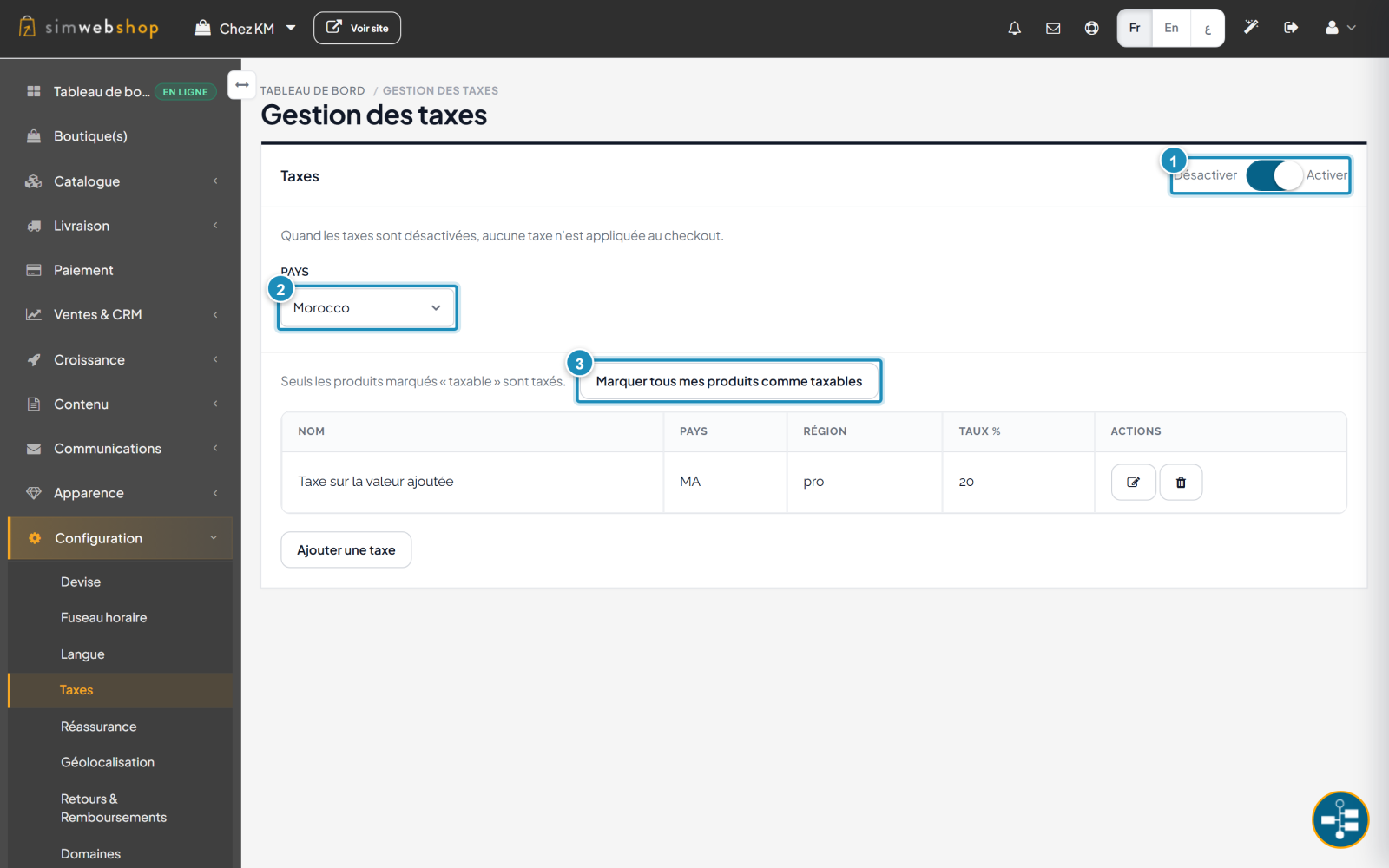
In the menu, open Configuration → Taxes. The toggle (marker ①) enables or disables taxes: when disabled, no tax is applied at checkout. The Country menu (marker ②) selects the relevant country — taxes are destination-based (calculated from the customer's country). The "Mark all my products as taxable" button (marker ③) makes your products taxable in one click — because only products marked "taxable" are taxed.
Step 2 — Add a tax
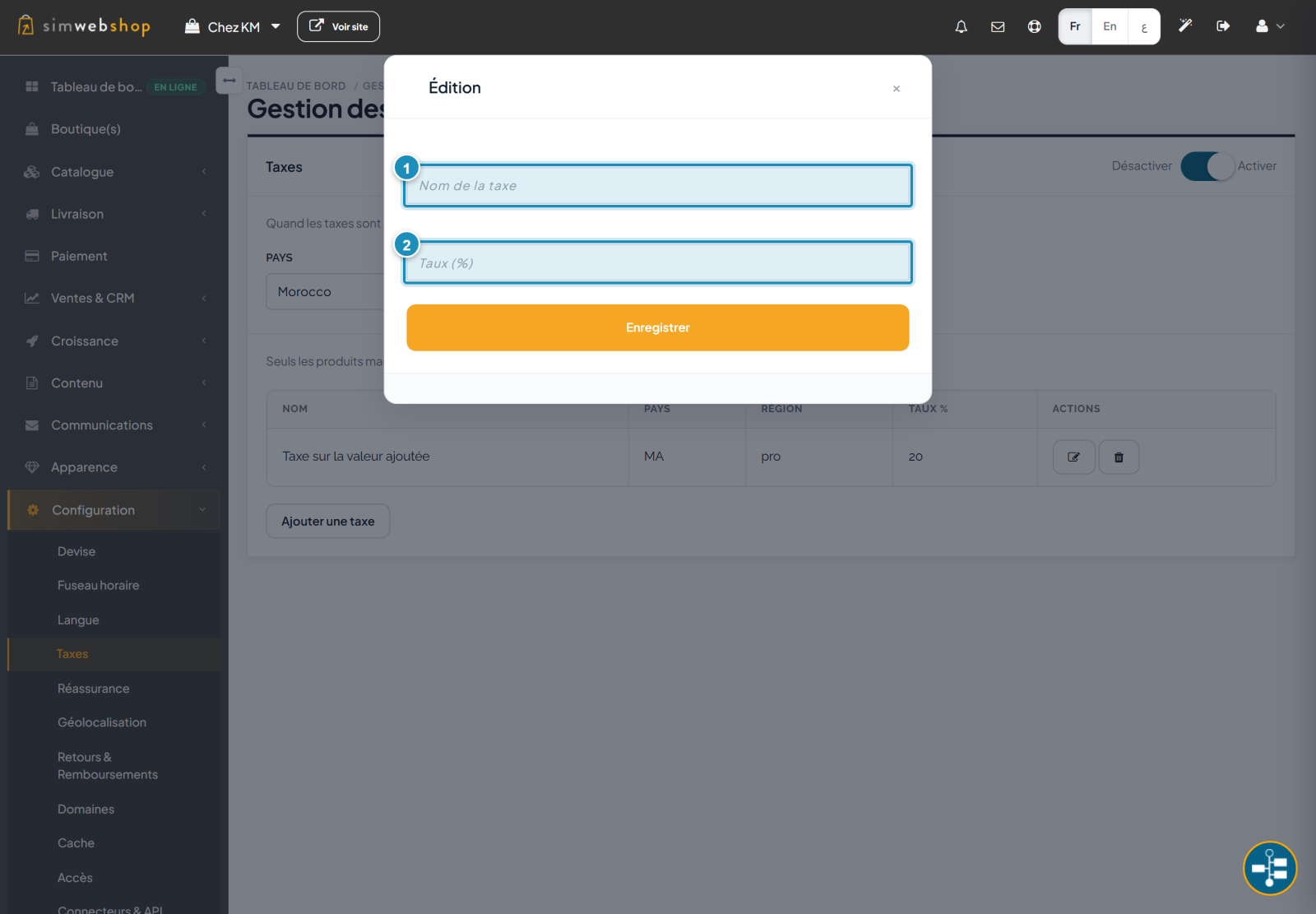
Click "Add a tax". Enter the tax name (marker ①) — for example "VAT" — and its rate as a percentage (marker ②) — for example 20. Click Save. The tax then appears in the table, with its country, region and rate, and can be edited or deleted anytime.
Expected result
The tax applies automatically to the cart of customers in the relevant country, on products marked taxable. The tax amount is calculated and added to the total at payment, with no action from you.
Expert tips
- Use the legal rate. Enter the official rate in force in your selling country.
- Target the right products. Only mark "taxable" the products actually subject to the tax.
- Think destination. The tax depends on the customer's country: configure each country you serve.
- Sell tax-free if needed. Disable taxes globally if your prices are tax-exclusive.
Common mistakes
| Mistake | Why it's a problem | The fix |
|---|---|---|
| Taxes enabled but no taxable product | No tax is applied. | Mark your products as taxable. |
| Wrong rate | Order totals are incorrect. | Check your country's legal rate. |
| Forgetting to enable taxes | Nothing is charged at checkout. | Turn on the toggle at the top of the page. |
| Wrong country | The tax doesn't apply to the right customers. | Select the relevant country before adding the tax. |
Frequently asked questions
Where does the customer see the tax?
At payment: the tax is calculated and included in the order total.
Which products are taxed?
Only those marked "taxable". Use "Mark all my products as taxable", or enable the option product by product from each page.
Can I disable taxes?
Yes, via the toggle at the top of the page. When disabled, no tax is applied at checkout.
Does the tax depend on the customer's country?
Yes. Taxes are destination-based: they apply based on the destination country. Configure a tax for each country you serve.
How do I edit or delete a tax?
From the tax table, use the action icons (edit / delete) on the relevant row.