Before you start
- You've already chosen the countries you ship to (see "Set up shipping methods").
A delivery service is a shipping offer presented to your customers (Standard, Express…), with its lead times and fees. For each country, you can create several services — managed by you or via a carrier — and set their rates by tier.
What you'll learn
- Add a delivery service to a country.
- Choose between a custom service and a carrier.
- Set lead times, the calculation method and rates by tier.
Step by step
Step 1 — Add a service to a country
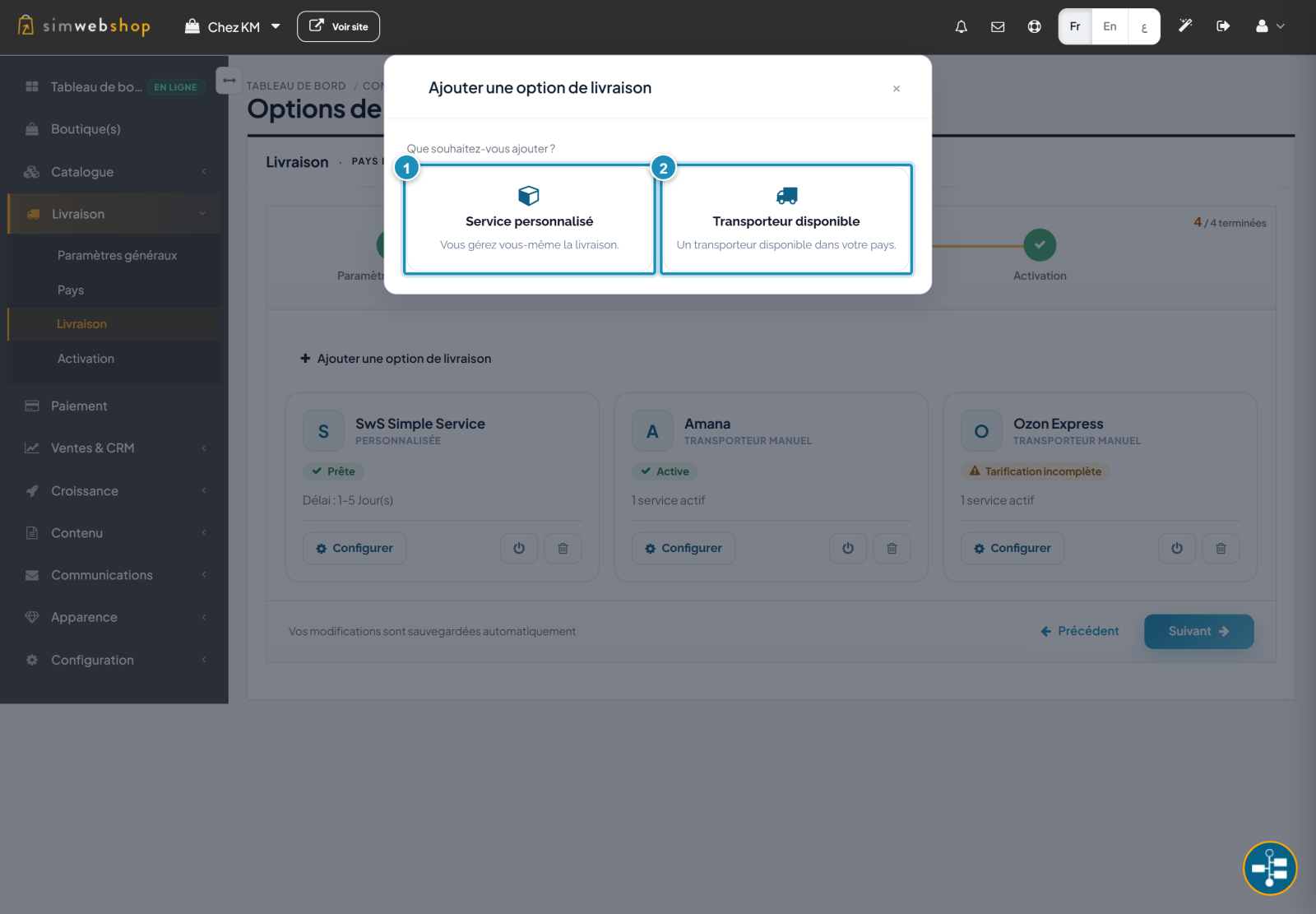
In Shipping → Countries, click Configure for a country, then "Add a delivery option". Two choices appear: Custom service (marker ①) — you manage delivery yourself and freely set lead times and rates — or Available carrier (marker ②) — a carrier in your country, activated via its API keys.
Step 2 — Set lead times and rates
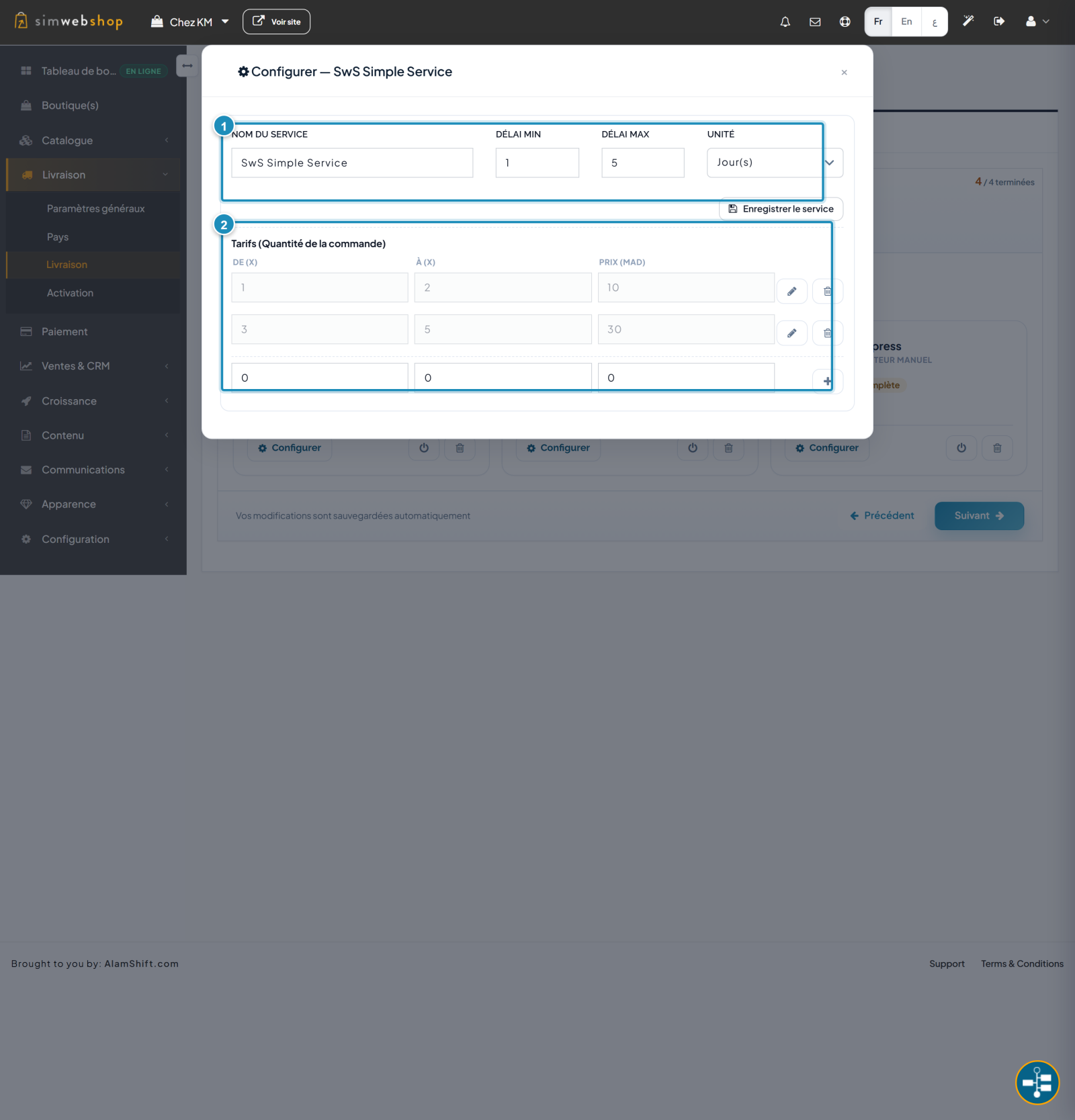
Open a service with Configure. Enter its name and lead times (marker ①) — min, max and unit (days, hours…). Then set the rates by tier (marker ②) using the chosen calculation method: fixed price, by weight, by amount or by quantity. Each tier runs from a From value to a To value, with its price. Save.
Expected result
Your customers see your delivery services at payment (Standard, Express, carriers…), with fees calculated automatically from your tiers. They pick the one that suits them and the total updates instantly.
Expert tips
- Offer choice. A fast (pricier) service and an economical one cover more needs.
- Pick the right method. Weight for heavy products, fixed price for simplicity, tiers for clear steps.
- Be realistic on lead times. Kept promises beat ambitious ones you can't meet.
- Check the status. A "Pricing incomplete" service won't show correctly: complete its tiers.
Common mistakes
| Mistake | Why it's a problem | The fix |
|---|---|---|
| No active service | The customer can't complete their order. | Create and activate at least one service per country. |
| Pricing incomplete | The service doesn't work at checkout. | Complete all rate tiers. |
| Tiers with gaps | Some orders have no rate. | Cover the full range (From/To) with no gap. |
| Unrealistic lead times | Customer disappointment and disputes. | Announce lead times you can meet. |
Frequently asked questions
What's the difference between a custom service and a carrier?
A custom service is managed by you (free lead times and rates). An available carrier is a provider in your country, activated via its API keys.
What fee calculation methods exist?
You can charge a fixed price, by weight, by order amount or by quantity of items, each with its tiers.
Can I offer several services per country?
Yes. Add as many services as you like (e.g. Standard and Express): the customer chooses at payment.
Where does the customer see the services?
At checkout, after entering their address. Only active, correctly priced services for their country appear.
What does "Pricing incomplete" mean?
The service lacks rates to be usable. Open it with Configure and complete its tiers until it turns "Ready" or "Active".