Before you start
- Your store is created (the legal pages are already pre-filled).
Static pages are your store's content pages: terms & conditions, privacy, returns, FAQ, but also your own pages ("About", "Shipping"…). They reassure customers, are required by law and improve your SEO. Your store already ships four, ready to customize.
What you'll learn
- Spot your system pages (legal) and create new ones.
- Edit a page's title, content and URL.
- Publish a page and find it on your store.
Step by step
Step 1 — Open "My pages"
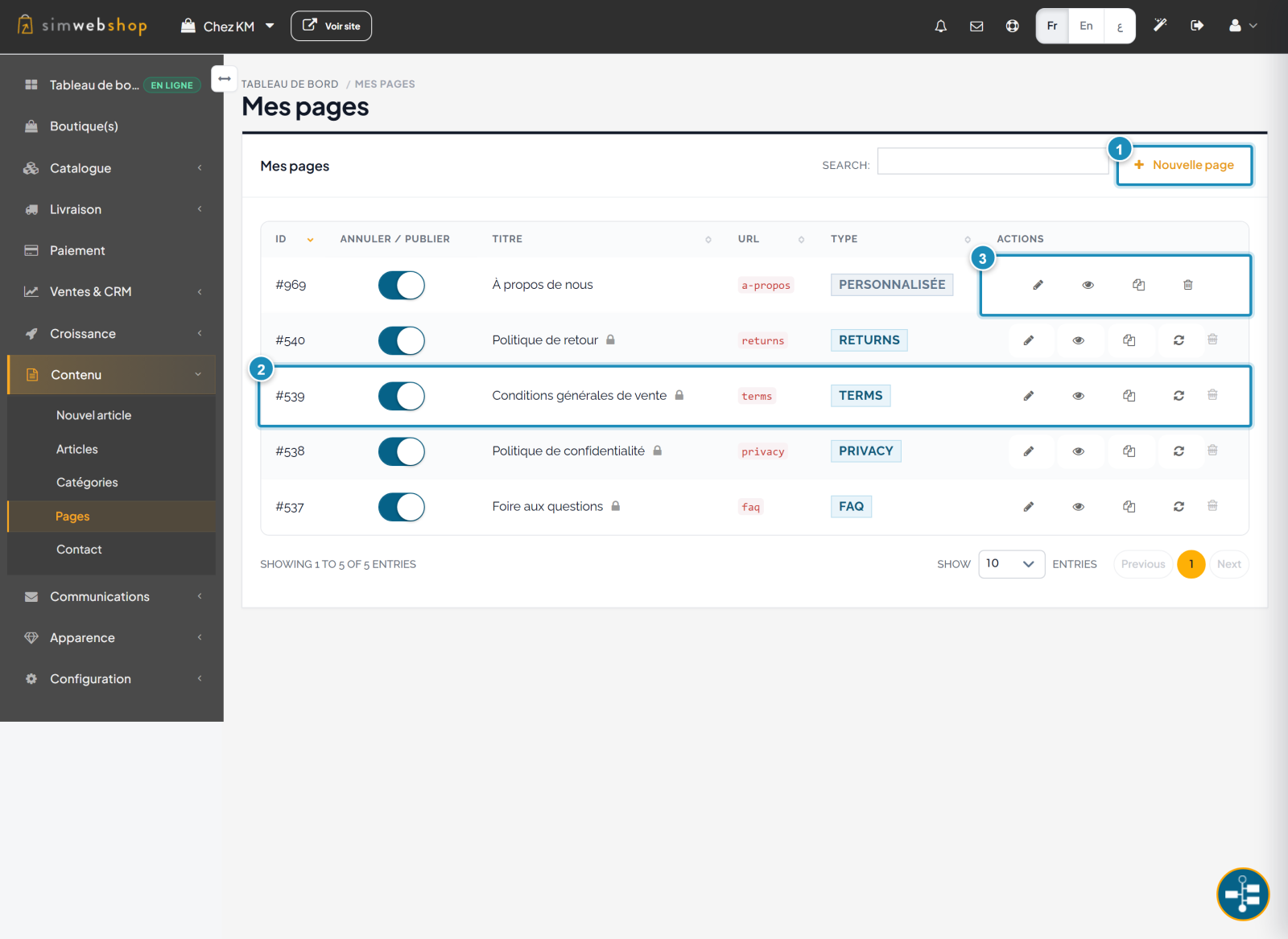
In the left-hand menu, open Content then Pages. The "New page" button (marker ①) creates a custom page. Your system pages — such as the Terms & Conditions (marker ②) — show a padlock: their URL is locked and they can't be deleted, but their content stays editable. Each row offers actions (marker ③): edit, preview, duplicate and — for your custom pages — delete.
Step 2 — Edit the page content
Click a page's edit icon to open the wizard. The 4-step track (marker ①) guides you: Content → Sections → SEO → Publish. Enter the Title (marker ②), then write the content in the rich editor (marker ③) — bold, lists, images, links. For your custom pages, the URL (marker ④) sets the address (e.g. /page/about). Your changes are saved automatically; click Next to add sections or set the SEO.
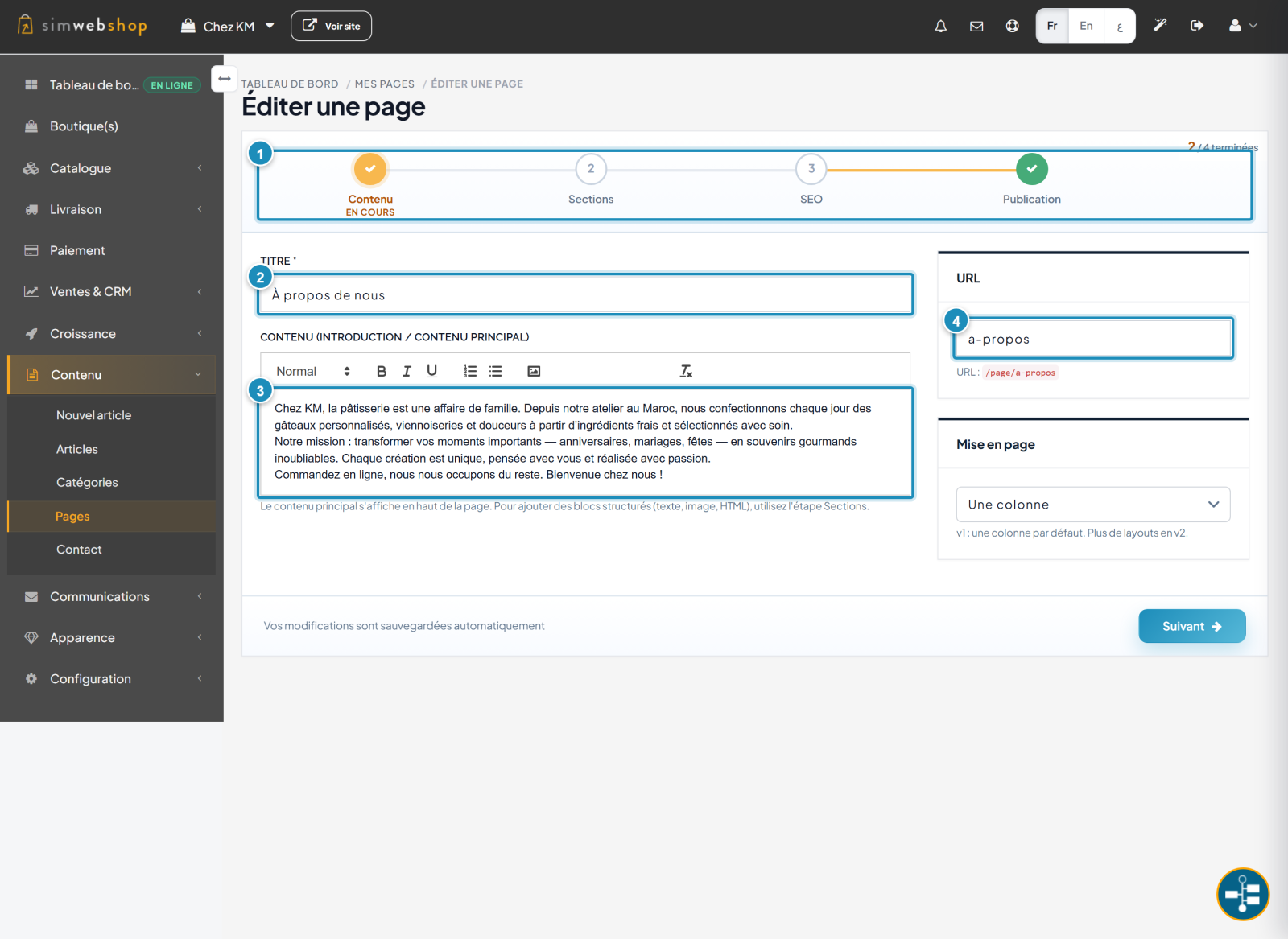
about, shipping): it's more readable for customers and better for SEO.Expected result
Your page is saved and, once published, reachable on your store at its URL (legal pages also appear in the footer). You can preview it anytime via the eye icon.
Expert tips
- Complete your legal pages. Tailor terms, privacy and returns to your business: it builds trust and is an obligation.
- Create an "About" page. Telling your story humanizes your brand and reassures new customers.
- Mind the SEO. The wizard's SEO step lets you set a clean title and description for Google.
- Keep URLs stable. Avoid changing the URL of a page already shared or indexed.
Common mistakes
| Mistake | Why it's a problem | The fix |
|---|---|---|
| Legal pages left empty | Loss of trust, legal risk. | Complete terms, privacy, returns. |
| Page not published | It doesn't appear on the store. | Turn on the row's Publish toggle. |
| URL changed after sharing | Broken links and SEO. | Set the URL once and for all. |
| Everything in one page | Unreadable content. | Split it up with the Sections step. |
Frequently asked questions
Why can't I delete some pages?
The system pages (terms, privacy, returns, FAQ) are locked because they're legal and tied to the footer. You can edit their content, but not delete them or change their URL.
How do I create an "About" page?
Click New page, enter the title "About", write the content and choose the URL (e.g. about). Publish, then link it from your menu if needed.
What is the "Sections" step for?
It adds structured blocks (text, image, HTML) below the main content, to compose a richer layout without coding.
Can I reset a system page?
Yes. System pages have a Reset action that restores the original template — handy if you made a mistake.
Where do my pages appear on the store?
Each published page is reachable at its URL (/page/slug). Legal pages automatically appear in the footer.