Before you start
- You already own a domain name (bought from a provider: OVH, GoDaddy, Namecheap…).
- You have access to that domain's DNS zone.
When created, your store is reachable at a SimWebShop address (mystore.simwebshop.com). Connecting your own domain name (mystore.com) strengthens your brand and customer trust. SimWebShop handles the HTTPS certificate automatically; you only have one DNS record to add.
What you'll learn
- Open the Domain name page and launch the assistant.
- Add the right DNS record at your provider.
- Verify the connection and switch to HTTPS automatically.
Step by step
Step 1 — Open the "Domain name" page
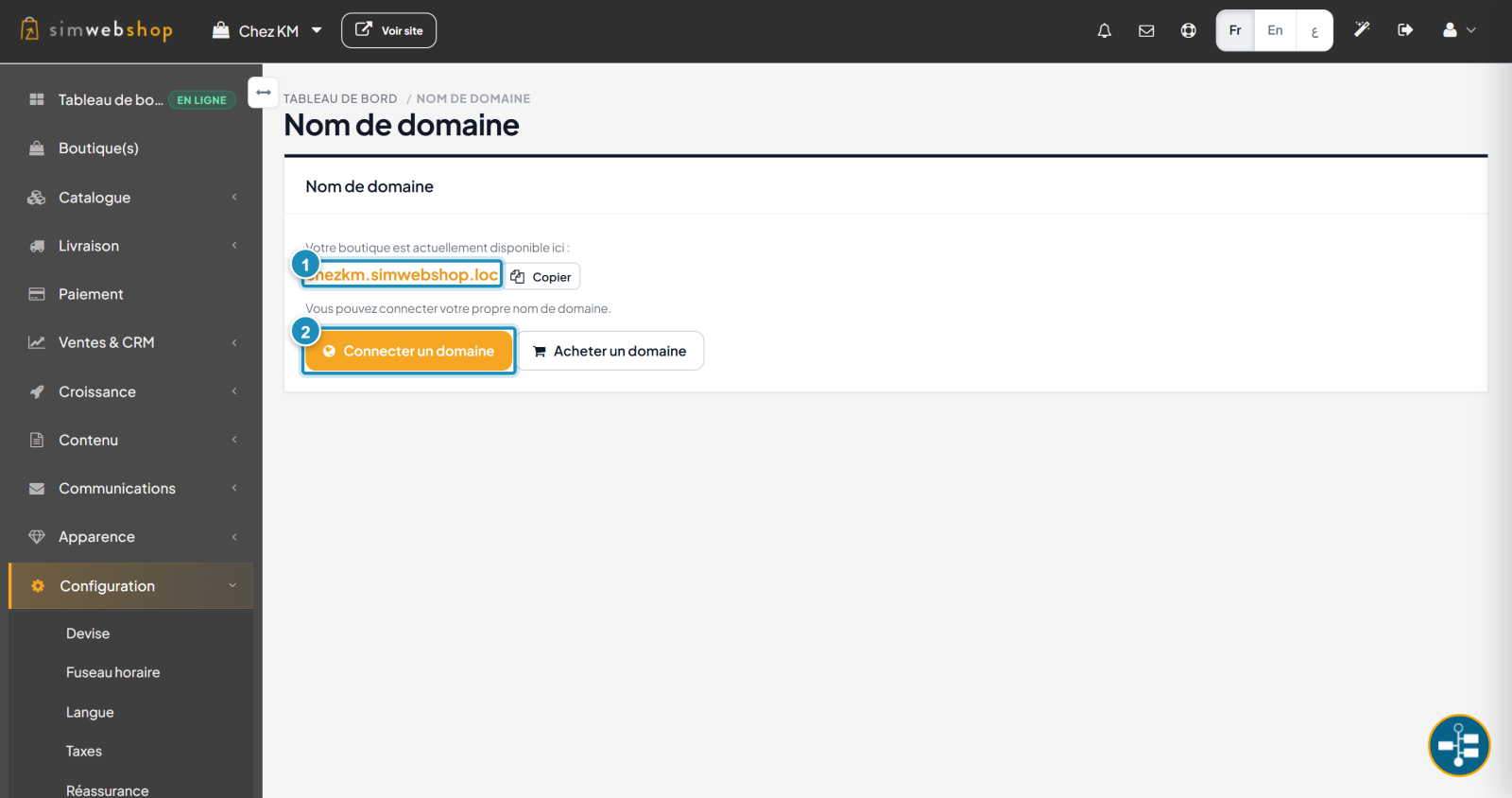
In the left-hand menu, open Configuration then Domains. The page shows your store's current address (marker ①) — your SimWebShop subdomain, always available as a fallback. Click Connect a domain (marker ②) to launch the assistant. (The Buy a domain button is coming soon; meanwhile, buy it from a provider.)
Step 2 — Add the DNS record, then verify
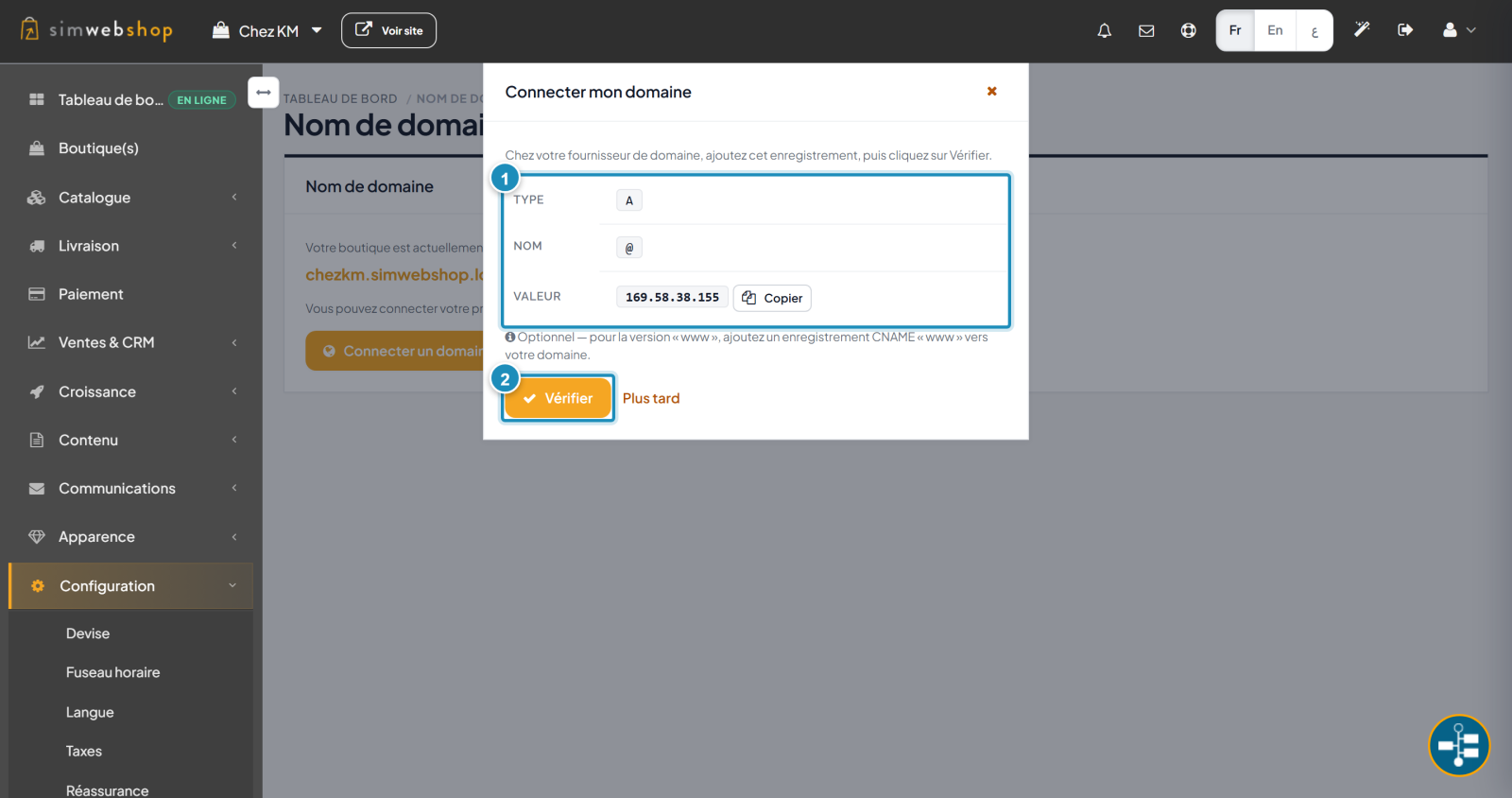
The assistant first asks for your domain (without http or www), then shows the DNS record to create (marker ①): a type A record, with name @, pointing to the value shown (SimWebShop's IP address). Copy that value, add the record in your provider's DNS zone, then click Verify (marker ②). The assistant checks the DNS, then enables the secure HTTPS connection automatically.
Expected result
Once the DNS is detected, your store shows on your domain with the HTTPS padlock. The Domains page then shows a "Connected / Verified / Secure connection" card, and your SimWebShop address stays available as a fallback.
Expert tips
- Plan for propagation. DNS can take a few hours; connect your domain before a big campaign.
- Verify only once. No need to recreate the record: let it propagate, verification is automatic.
- Keep the domain with you. You stay the owner of your domain name at your provider.
- Don't keep the old A. Replace the existing A record with SimWebShop's (keep only one for
@).
Common mistakes
| Mistake | Why it's a problem | The fix |
|---|---|---|
| Domain entered with http/www | The assistant rejects the input. | Enter just mystore.com. |
| Wrong record type | Verification fails. | Create an A record (not CNAME) on @. |
| Verifying too early | DNS hasn't propagated yet. | Wait, then re-verify later. |
| Two A records on @ | Destination conflict. | Keep only SimWebShop's A record. |
Frequently asked questions
Do I have to buy my domain from SimWebShop?
No. Buy it from the provider of your choice, then connect it here. Direct purchase from SimWebShop is coming soon.
Do I need to set up HTTPS myself?
No. As soon as the DNS points to SimWebShop, the HTTPS certificate is issued and renewed automatically. Nothing to install.
How long before my domain works?
From a few minutes to a few hours, depending on your provider's DNS propagation. Verification continues even if you close the assistant.
Does my old SimWebShop address stay active?
Yes. Your subdomain mystore.simwebshop.com stays available as a fallback address, even after you connect your domain.
Can I change or disconnect the domain later?
Yes. From the Domains page, you can edit the domain or disconnect it: the store then falls back to its SimWebShop address.