Before you start
- Your store is online and you target customers who speak different languages.
Offering your store in several languages widens your audience and builds trust. You choose the available languages, your default language, and you can even adapt the translations to your brand's tone.
What you'll learn
- Enable or disable languages.
- Set the default language.
- Customize your store's translations.
Step by step
Step 1 — Manage your languages
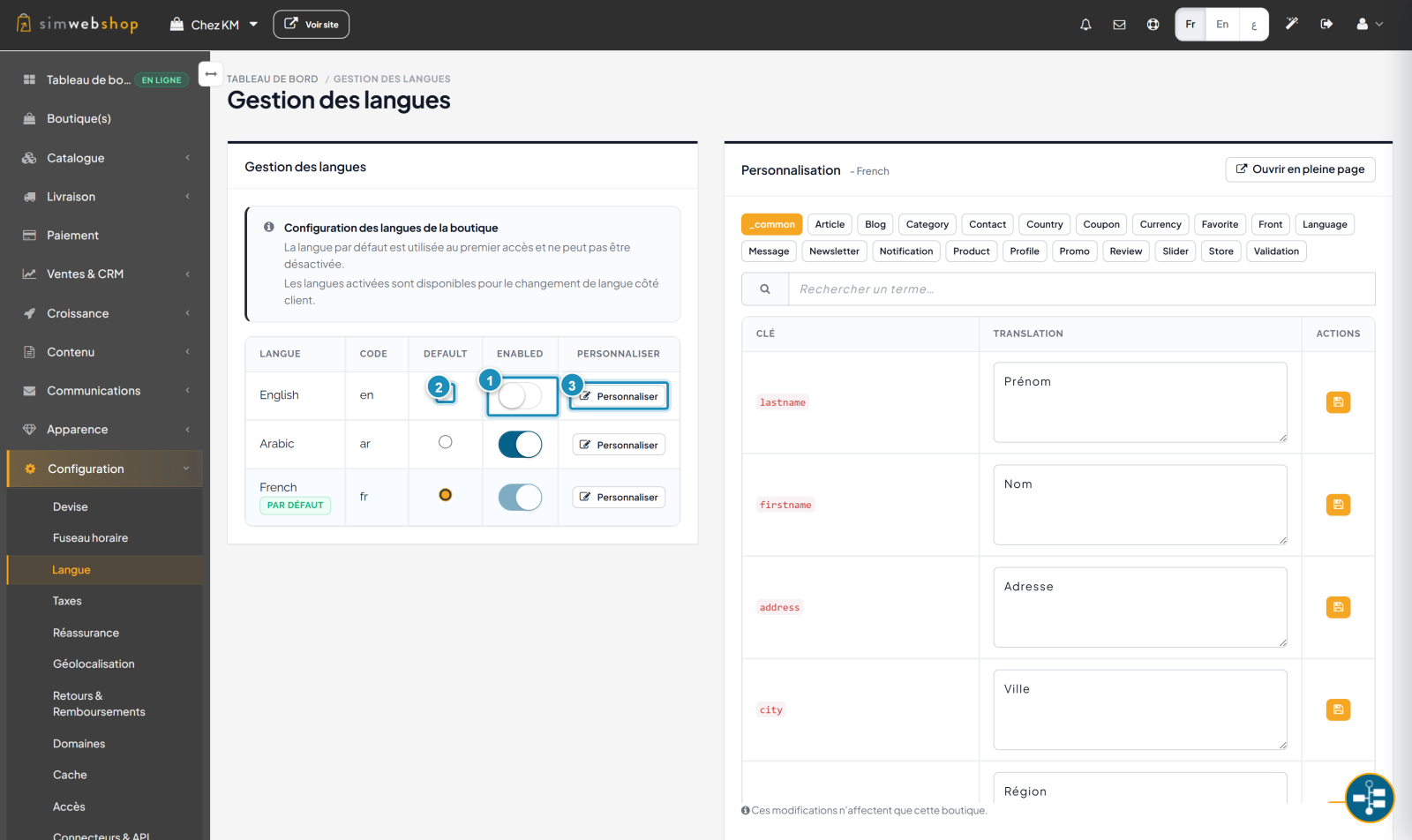
In the menu, open Configuration → Language. The table lists the available languages. The ENABLED toggle (marker ①) turns a language on: it's then offered to your customers via the language switcher. The DEFAULT column (marker ②) sets the default language, used on first visit — it can't be disabled. The Customize button (marker ③) opens the language's translation editor.
Step 2 — Customize the translations
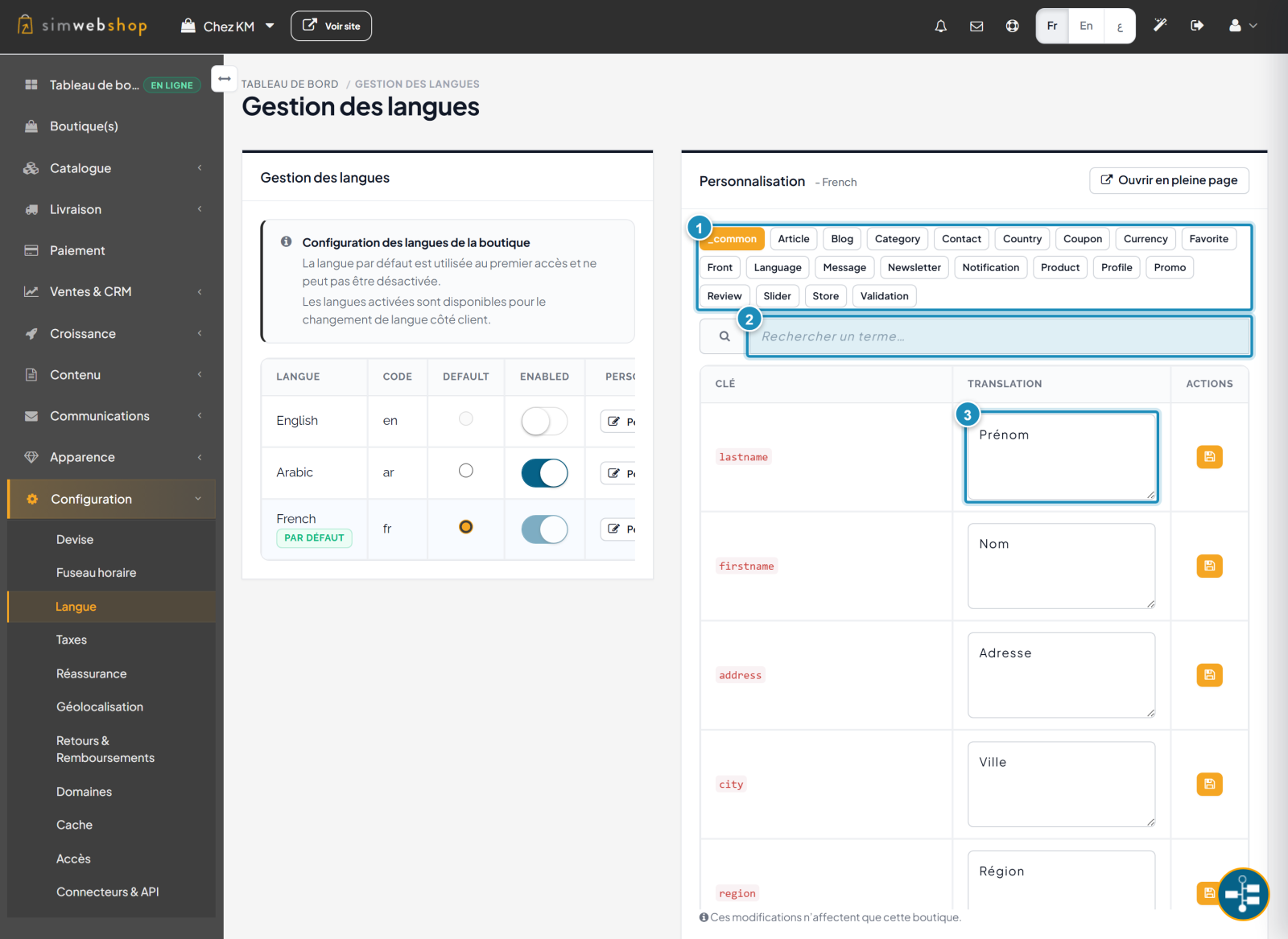
The Customization panel lets you adjust any interface text. First pick a module (marker ①) — the area to translate (common, product, checkout…). Use the search (marker ②) to find a specific term, then edit the translation field (marker ③) and save. A reminder notes: "These changes only affect this store."
Expected result
Your customers can switch language from a switcher on the store, with your default language on first visit. The texts you customized appear with your own wording.
Expert tips
- Match the default to your market. The language of most of your customers.
- Customize key terms. Buy buttons, cart labels: your brand tone matters.
- Mind Arabic (RTL). The layout flips automatically right-to-left.
- Stay consistent. Keep the same vocabulary from one page to the next.
Common mistakes
| Mistake | Why it's a problem | The fix |
|---|---|---|
| Enabling an untranslated language | Your products stay in a single language. | Translate your content before enabling the language. |
| Changing the default by mistake | Customers land in the wrong language. | Check the DEFAULT column before saving. |
| Over-customizing | Hard to maintain and inconsistent. | Only edit the truly strategic terms. |
| Forgetting the switcher | The customer can't find their language. | Enable languages so they appear in the switcher. |
Frequently asked questions
How does the customer switch language?
Via a language switcher on the store. Only enabled languages appear there.
Which language shows on first visit?
The default language (DEFAULT column). The customer can then pick another from the enabled languages.
Can I disable the default language?
No. The default language can't be disabled. Set another default first if needed.
Do my customizations affect other stores?
No. Customized translations are specific to your store only, as the reminder under the table states.
How do I translate my products and categories?
Content (name, description) is translated directly in each product or category, language by language. The Language page handles the interface; the items handle their own content.