Before you start
- Your store is online (the signup block already shows on your storefront).
The newsletter lets you collect your visitors' emails to reach them again: new arrivals, promotions, back-in-stock alerts. A channel that's free and that you own — unlike social media. Here you customize the signup block and track your subscriber list.
What you'll learn
- Customize the title, message and signup feedback.
- Review your subscribers and the key metrics.
- Export your list as a CSV.
Step by step
Step 1 — Customize the signup block
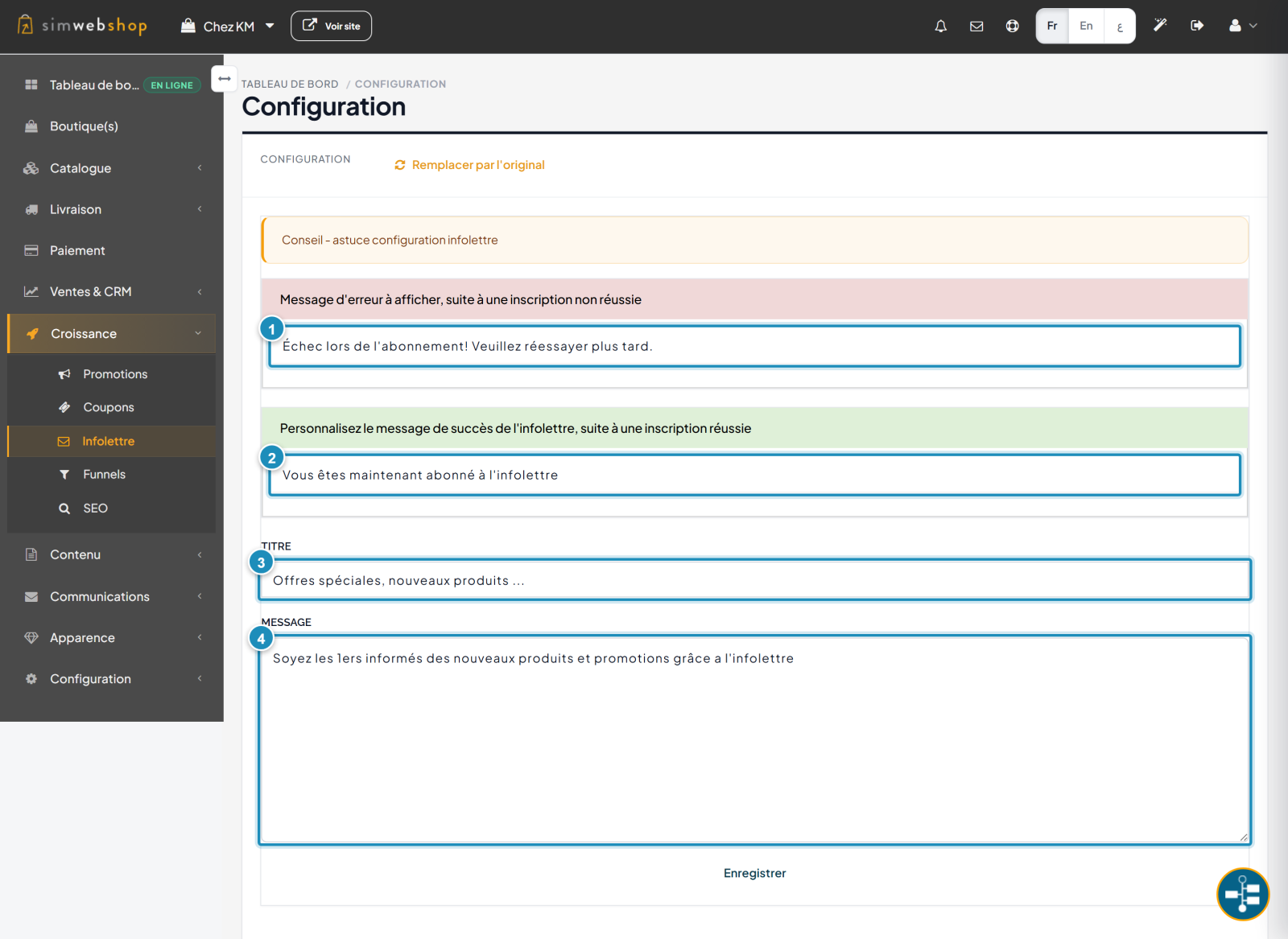
In the left-hand menu, open Growth then Newsletter, and click Settings. Here you set the text your visitors see. The error message (marker ①) shows if signup fails; the success message (marker ②) confirms the subscription. The Title (marker ③) and Message (marker ④) form the hook of the block shown on your store. Click Save. The Restore original link resets the default texts.
Step 2 — Track and export your subscribers
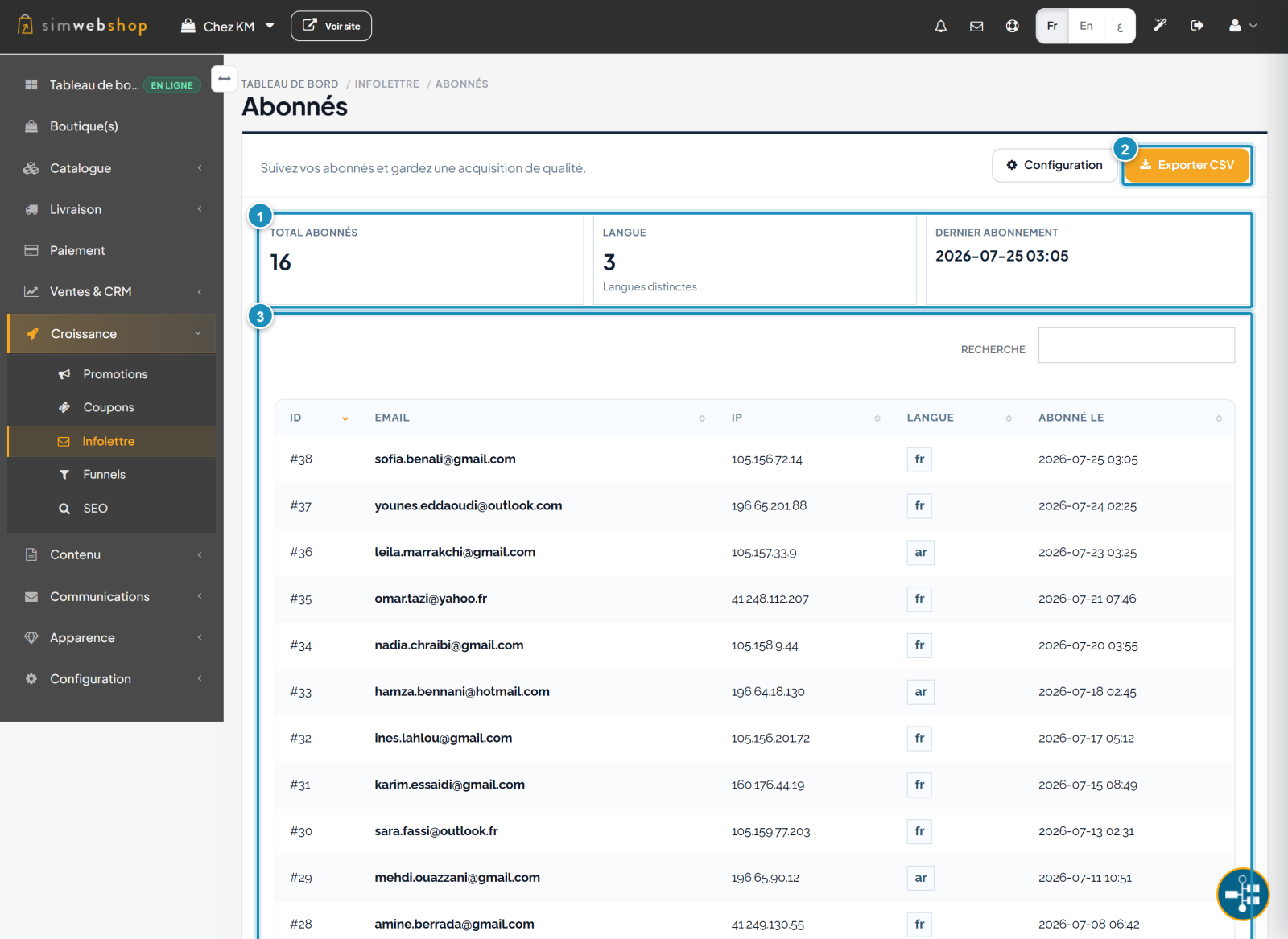
Still under Growth > Newsletter, the Subscribers page lists every signup. The indicators (marker ①) summarize the essentials: total subscribers, number of languages and latest subscribe. The Export CSV button (marker ②) downloads the full list. The table (marker ③) details each subscriber: email, IP, language and signup date — sortable and searchable.
Expected result
Your signup block shows a polished hook on your store, every new subscriber appears in the list, and you can export your base anytime to launch your marketing campaigns.
Expert tips
- Offer something in return. A welcome promo code strongly boosts the signup rate.
- Export regularly. Keep a backup of your list and sync your emailing tool.
- Segment by language. A message in the subscriber's language is far more effective.
- Stay consistent. A useful, not-too-frequent newsletter keeps interest without tiring people.
Common mistakes
| Mistake | Why it's a problem | The fix |
|---|---|---|
| Generic title ("Newsletter") | Few signups. | Announce a concrete benefit in the title. |
| Empty success message | The visitor doubts it worked. | Clearly confirm the subscription. |
| Never exporting | List unusable elsewhere. | Export the CSV and feed your emailing tool. |
| No follow-up sends | Subscribers collected for nothing. | Plan regular campaigns. |
Frequently asked questions
Where does the signup block appear on my store?
Depending on your theme, it usually appears in the footer or in a dedicated homepage section, with the title and message you set.
Does SimWebShop send the emails for me?
SimWebShop collects and centralizes subscribers. To send campaigns, export the CSV to an emailing tool (Mailchimp, Brevo, etc.).
What is the "Language" column for?
It shows the subscriber's browsing language at signup time. Useful to segment your campaigns by language.
Can I restore the default texts?
Yes. The Restore original link at the top of the settings resets the default title and messages.
What's in the exported CSV file?
Each subscriber's ID, email, IP, language and signup date — ready to import into your emailing tool.