Before you start
- Your store is online with products filed into categories.
A promotion is an automatic discount applied to a whole category (or to products) over a set period — with no code for the customer to enter. Perfect for sales, clearance or a seasonal campaign.
What you'll learn
- Create a promotion and target categories or products.
- Set the discount, validity dates and priority.
- Track and enable your promotions.
Step by step
Step 1 — Open promotions
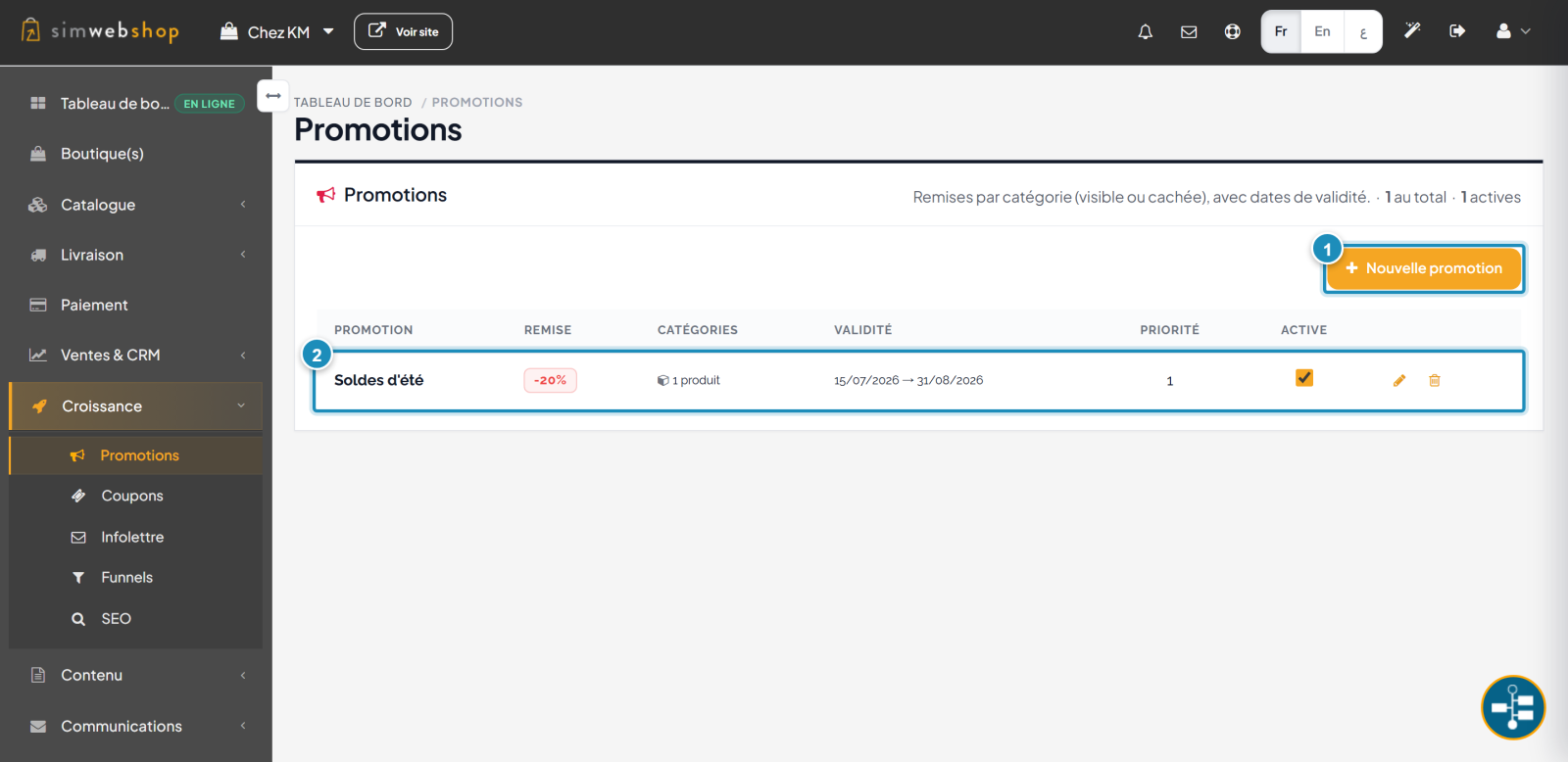
In the left-hand menu, open Growth then Promotions. The "New promotion" button (marker ①) starts the creation. Each row (marker ②) summarizes a promotion: its discount, the categories or products targeted, its validity period, its priority and its active state.
Step 2 — Create your promotion
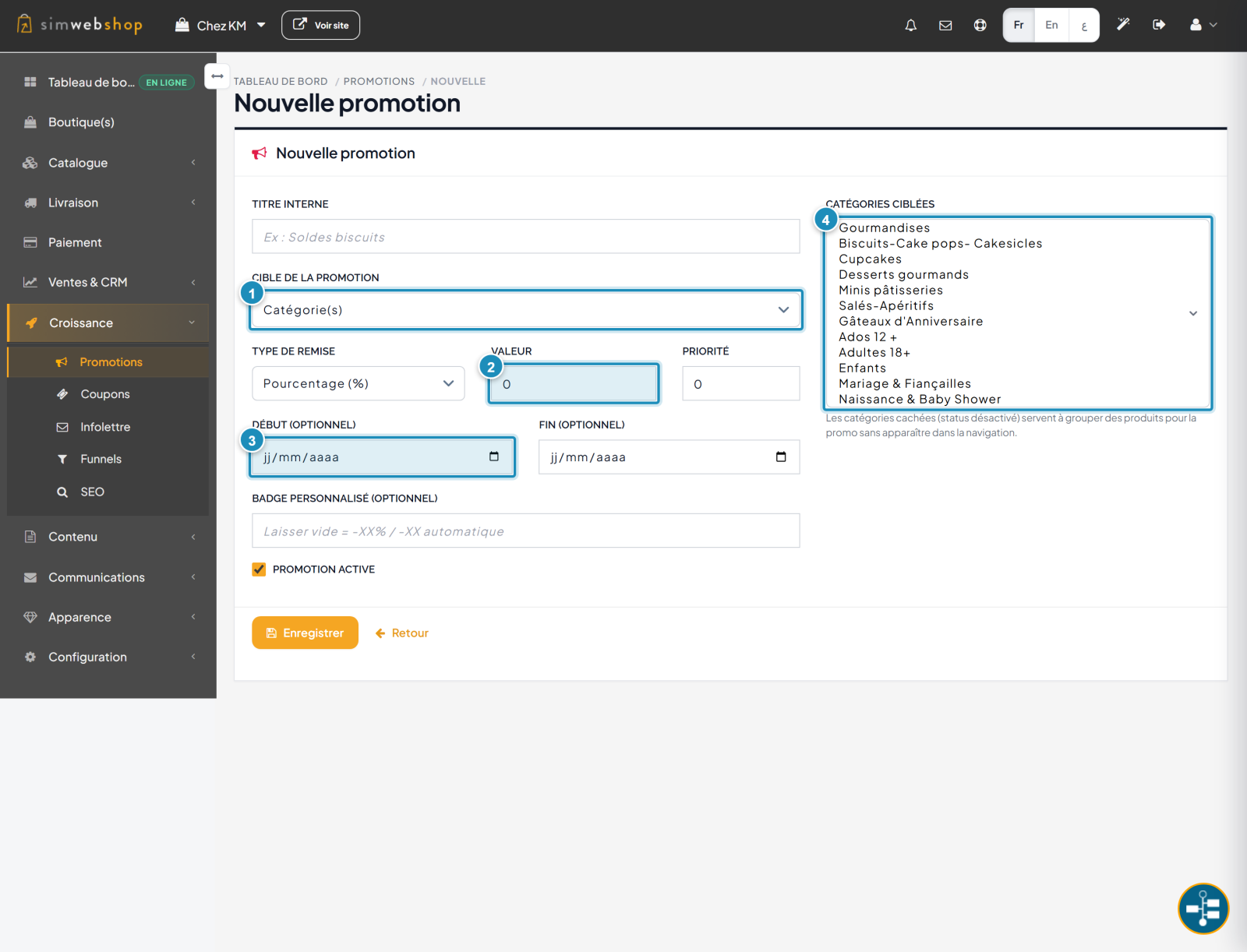
First choose the target (marker ①): one or more categories, specific products, or the whole store. Then set the type and value of the discount (marker ②) — percentage or fixed amount. Set the validity period (marker ③) with a start and end date (optional). Finally, select the targeted categories (marker ④). An internal title, a custom badge and a priority round it off. Click Save.
Expected result
The discount applies automatically to the targeted products for the whole period, with a badge (e.g. -20%) shown on your store. No code to share: the struck-through price appears directly for your customers.
Expert tips
- Date your campaigns. A near end date creates urgency and triggers the purchase.
- Use priority. If several promotions overlap, priority decides which one applies.
- Group with hidden categories. Ideal for a "promo" selection without cluttering your navigation.
- Customize the badge. A "SALE" or "-30%" badge draws the eye more than a price alone.
Common mistakes
| Mistake | Why it's a problem | The fix |
|---|---|---|
| Promotion not active | The discount doesn't apply. | Check "Promotion active". |
| Dates already past | The promotion shows as "Expired". | Make sure the period covers today. |
| No targeted category | The discount applies to nothing. | Select at least one category or product. |
| Overlapping promotions | Unpredictable behavior on a product. | Set the priority to decide. |
Frequently asked questions
What's the difference between a promotion and a coupon?
A promotion applies automatically (no code) to a category or products. A coupon requires a code the customer enters at the cart.
Where does the promotion appear?
On your product pages and lists: the struck-through price and a discount badge appear automatically to customers.
Can I target specific products?
Yes. Choose the Product(s) target instead of Category(ies), or the whole store for a global discount.
What is priority for?
When several promotions concern the same product, the highest priority wins. It avoids discount conflicts.
What are "hidden" categories?
Disabled categories, invisible in navigation, used only to group products to apply a promotion to them.